
How to Install and Set Up PokerTracker 4 - Full Guide

- PokerTracker 4 registration
- PokerTracker 4 installation
- Poker Tracker 4 running
- PokerTracker 4 settings
- Hands base import
- The poker-room selection and its settings
- Seating selection
- Currency settings
In this article, you will find out how to install and set up PokerTracker 4.
Our instructions describe the process step by step, and the illustrations will help you to simplify this process.
You can find out from our PT4 common article what Poker Tracker is and how to use this program.
Before the installation, we recommend that you register on the official product site.
In the future, you can purchase PT4 and also download the free additional modules and HUDs.
Read more about the Poker Tracker 4 registration and installation process and its main settings. For convenient navigation, use the content on the left.
PokerTracker 4 Registration
Visit the website pokertracker.com and click on “Create Account” in the upper right corner. Then the form of the data fulfilling for a new account will appear in front of you. Indicate the preferable user name (1), e-mail address (2), your name and surname (3), and also enter the created password (4) and retype it again (5). Then press the button “Register”.
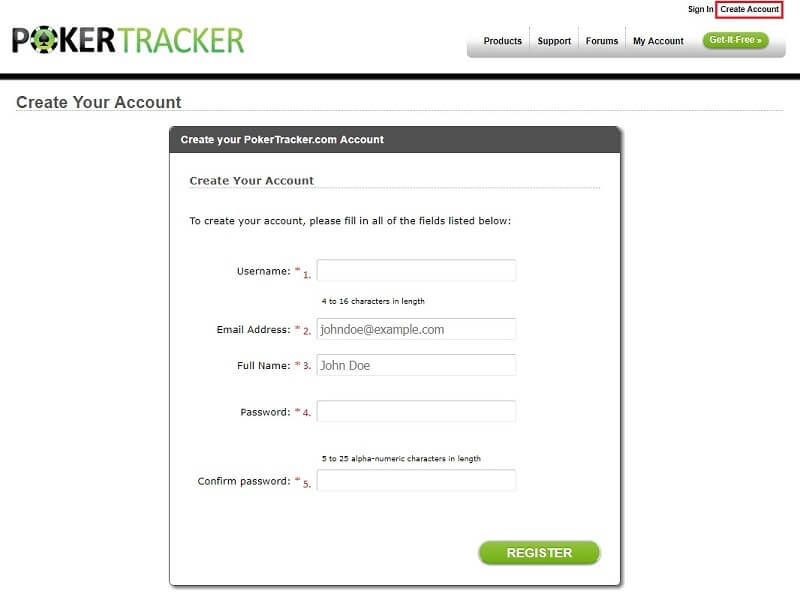
Please note that the password has to be complicated enough. It’s not enough to write just 6 simple letters and 3 figures. If the warning about the fact that your password is simple appeared in front of you then you should try to change the register of several letters (write them with capital letters) and complete it with admissible punctuation marks (for example, put a dot somewhere, the dash or the asterisk).
You should try until the phrase “Password strength: High” appears in front of you. Also, please note that the password coincides in both boxes.
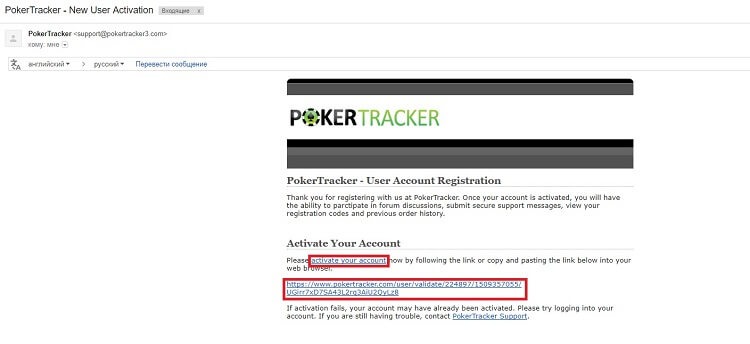
After that, you should indicate the email where the message for your account activation will be sent. Click on the blue text with a link in the message “activate your account” or follow the link indicated below.
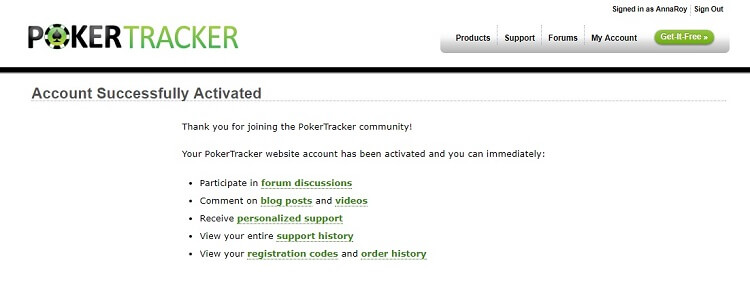
If you did everything correctly, then the message “Account Successfully Activated” will appear in front of you. Then, you can enter the site under your login and password.
PokerTracker 4 Installation
The simplest and safest way to download PokerTracker 4 is to do it through the official site. Moreover, you can test the program absolutely free by downloading the trial soft (the full version is with a limited usage period, in this case, it is 30 days). You will be given enough time to understand whether you need this program or not, and if it is worth buying or not. In any case, PT4 installation starts with the necessity to download the program.
Step-By-Step guidance on how to download and set PT4
1. Follow the link to the official PokerTracker 4 site and press the button “Download”.
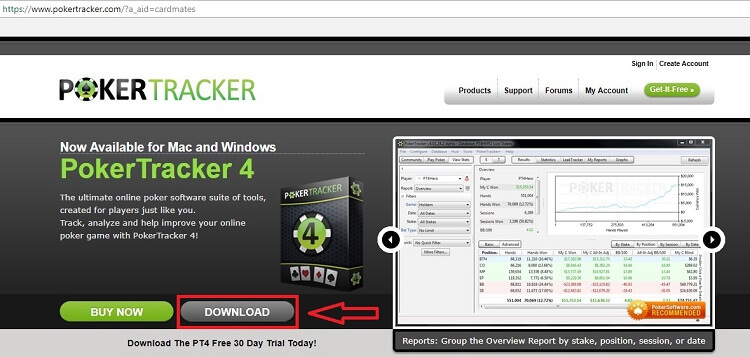
2. In the new pop-up press again the button “Download” and after it, the downloading process will start.
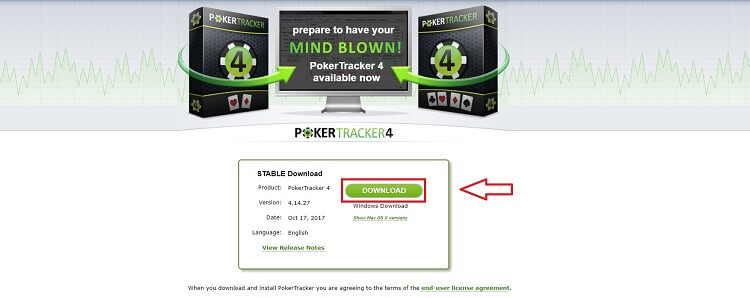
The program occupies about 62 megabytes, which is why it loads quickly enough.
3. Open the folder where the setup file has been downloaded (PT-Install-v4.14.27.exe) and run it.
4. Go through the standard installation process by pressing the buttons in every pop-up «I Agree» – «Install» – «Next» and «Finish».

In the first pop-up, you make the standard confirmation of the user agreement, in the second one, you can choose the file installation place (it is the standard -«Program files» on disk C), in the third one, you should just observe the installation process, and in the fourth pop-up, you finish the installation process. In the last pop-up, you can tick the box “Run Poker Tracker 4» for the program to run after installation or clear the tick box if you don’t want the program to start.
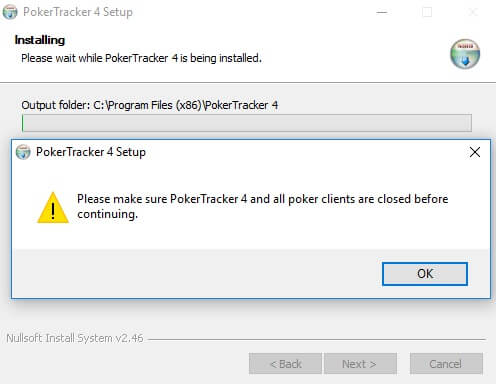
During the installation process, the following pop-up with a warning can appear:
Poker Tracker 4 Running
In order to run Poker Tracker and to work with it, you should install the database management system “PostgreSQL”.
Open the resource postgresql.org and in the tab “download” choose the operating system type on which you are working (for example, MacOS, Linux or Windows). After the clarification of some data, you will be redirected to the site enterprisedb.com, where you have to register, and then you can download the latest PostgreSQL version.
After downloading, you should install the app, and then you can use Poker Tracker, Holdem Manager and the other programs requiring PostgreSQL.
The installed PostgreSQL is necessary during the first run of Poker Tracker 4. Don’t forget your password because you have to enter it several times.
Poker Tracker 4 First Run
During the first program run, you should make the basic app settings. By running PT4 on your PC for the first time, you will see the following pop-up:
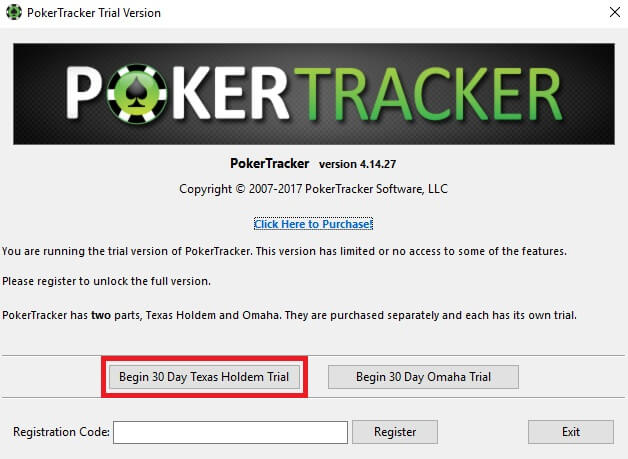
Here you can choose one of the three suggested ways of soft using – the free trial soft for Holdem, free trial for Omaha, or you can enter the Poker Tracker 4 Registration Code if it is available for you.
How to find out the Poker Tracker Registration Code?
The Poker Tracker registration code is sent to your email after the soft purchase. Also, there is a way to get it for free; we have written about it below.
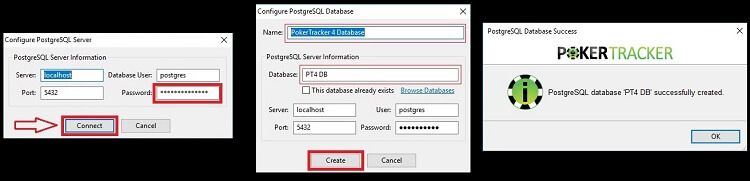
After choosing the PT4 trial version or entering the code, you will be asked to enter the PostgreSQL configuration. The server, port and the database username are entered automatically; you only need to enter the password (which is indicated during the PostgreSQL registration) and press the button “Connect”. After it, you can create the new database for PT4. In the fields “Name” and “Database” you can write any created name or leave the standard variant (“Poker Tracker 4 Database" and "PT4 DB").
After that, the pop-up will appear in front of you and inform you that the database has been successfully created.
Then, the PokerTracker 4 setting process starts. You can omit this and do it later, but it is better to indicate the basic settings at once. This process is carried out in several stages.
Step 1. You are thanked for the installation and suggested setting up Poker Tracker by mentioning that you can do it within the program through the "Tools" menu.
Step 2. You are asked to choose a currency (the standard is USD, i.e. US dollars).
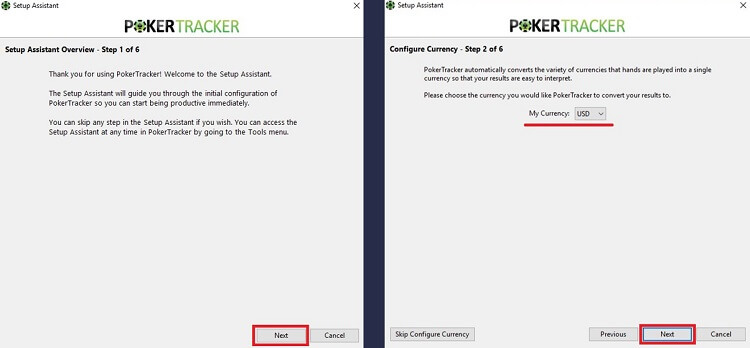
Step 3. It is the longest stage concerning the poker rooms' settings.
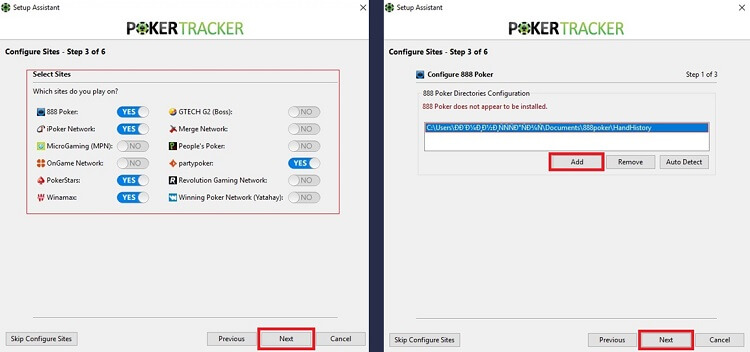
At first, you are suggested to choose poker rooms (from the rooms’ list) that support the soft where you want to use Poker Tracker. Then you have to pass the configuration for each of them (to do it, the poker room must be installed on your PC). In the second pop-up, you should add the rooms list with the aid of the key “Add” (in the example, there is an addition of 888poker). In the third pop-up, you can indicate your preferable place at the table of any size (separately in every poker room) where you will be automatically placed by the program. In the last pop-up of PT4 poker rooms settings, you are suggested to import the hand history and archive the imported hands. Place both indicators in the position “YES” (as it is stated in the picture) and press “Next”.
<
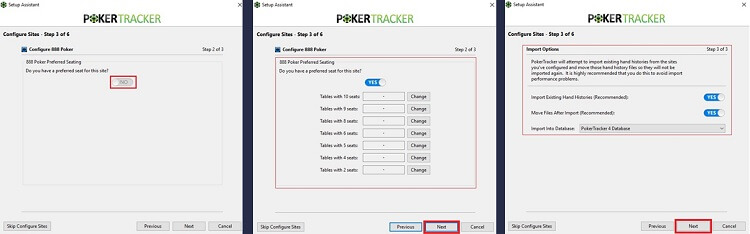
Step 4. The theme setting. You can choose any of the proposed card styles and the table styles, or download other styles from the internet. For illustrative purposes, the pictures are placed sideways.
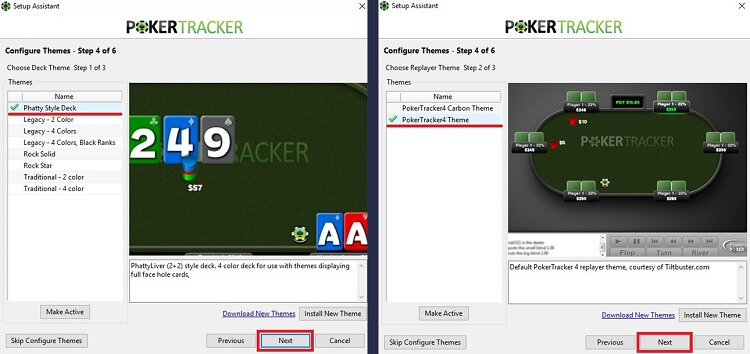
Step 5. The replay setting.
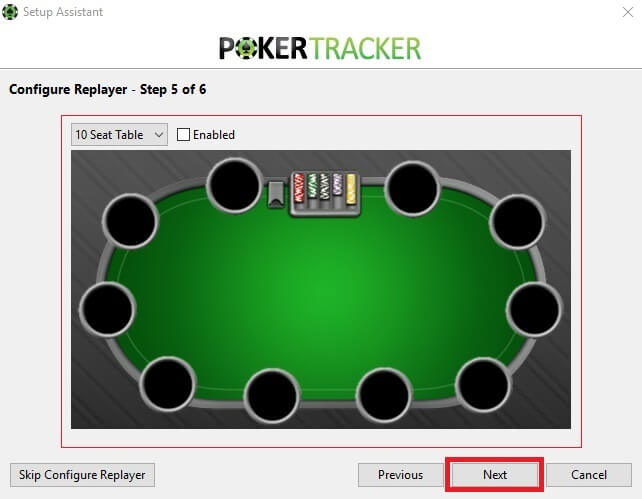
Step 6. The final stage. You are congratulated on the installation of the program's basic settings. They are set in a matter of seconds, and you can press the button “Finish” and then “Close”.

After this procedure, the Poker Tracker lobby will be opened in front of you, and you can use it.

PokerTracker 4 Settings
Poker Tracker is one of those programs that must be adjusted “for yourself”. You can find a lot of PT4 settings tips for the newbies for one or another discipline at the networks and forums. In this article, we talk about the basic settings that must be done by every soft user.
Hands base import
If earlier you used another poker soft then you have an opportunity to import the hand base into Poker Tracker. To do it, you should enter the tab “play Poker” and choose “Get Hands From Disk»:
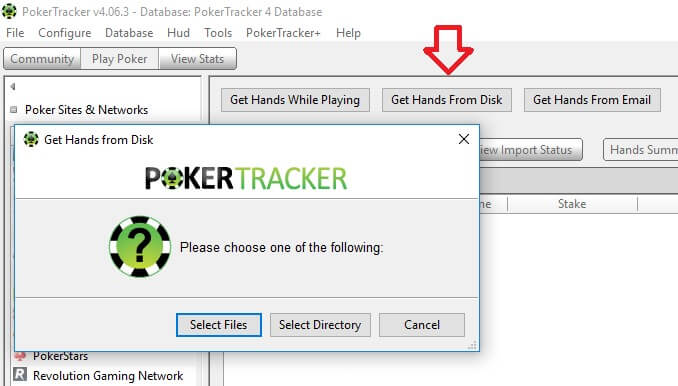
- Select Directory – it is an import of all files with the hand history from the chosen folder.
- Select Files – it is an import of certain files from the folder.
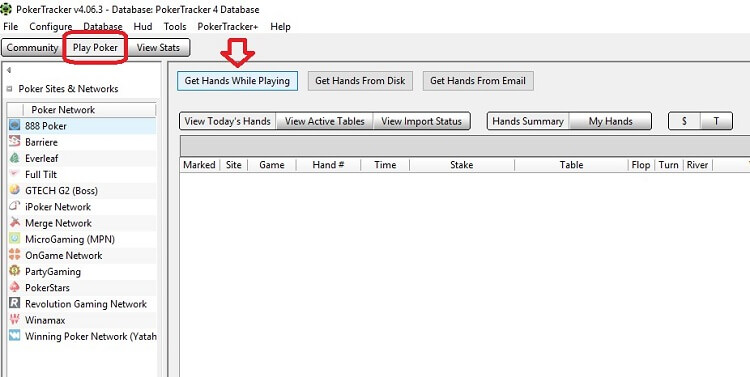
Then, in order for the stats to be displayed at the table during the game, you must switch on the hand import in real-time mode. In order to do it you should press “Get Hands While Playing” in the same tab:
Poker room selection and its settings
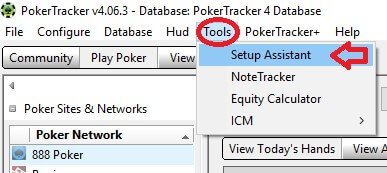
At this stage, you select and set the poker rooms where you will play (if you didn’t set them during the first program entry, or you want to add a new poker room). In order to open the settings menu in the upper line you should choose “Tools” and press “Setup Assistant” in the pop-up menu:
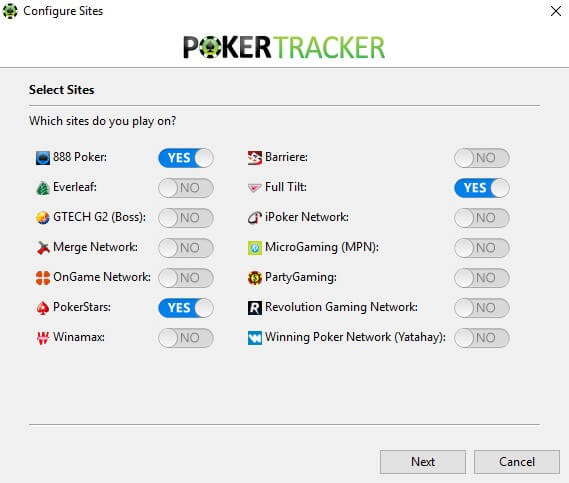
The hint: you can combine the statistics from the different sites by creating an alias for your accounts in the different rooms.
Preferred seating selection
For the correct HUD display, you should set the preferable seat at the different tables of a poker room and indicate it in the Poker Tracker settings. You can do it through “Tools” – “Setup Assistant” after the selection of played poker-rooms (see the picture in the section “the first PT4 run”).
It is important: when you've just sat down at the table, you should play one hand in order for the program to determine you to be in the game and automatically place the stats in accordance with the chosen preferable position.
Currency selection
You should enter «Database» – «Currency», and then choose the currency you play with. If you set “Automatically use the historical daily rates», then the conversion will be carried out automatically according to the current currency rate.
Game results tracking
The tab “View Stats” has a variety of tools and filters for your own game analysis and your opponents’ game analysis. In essence, it is the main working area of the program.

For the information display, you should enter your login in the poker room, and the program hitches all necessary data. On the right pop-up side, the graphics and the main statistical indicators will be displayed depending on the chosen “subtab” at the top:
- Results – it means the results of your play, number of hands played, profit, equity and etc.
- Statistics – it is the collection of statistical data.
- LeakTracker – it is the tracking of the leaks in your game. In this tab, the analysis of your indicators in general and for every separate position at the table is displayed. During the careful examination, you can find out the mistakes in your play and correct them.
- My Reports – it means your records.
- Graphs - it means the diagrams.
HUD selection and its settings play an important role in the PokerTracker settings. We have written about that in a separate article about HUD in PokerTracker 4. We have also collected for you the most popular HUDs PT4, and you can download them directly from our site.
If you have problems with PokerTracker settings or you want to get more information about the software, ask questions to our experts on the forum in the relevant topic.




I'm sure gonna try that software. Still dont know how it is working. A little bit cheating but......
Please, login or register.