
HUD in Holdem Manager 3: How to Set the Program
Setting Holdem Manager 3 HUD is quite an individual case. In this article, we won’t share information concerning the stats which should be imported into Heads-Up Display or advise you on how to distribute the indicators in pop-ups. In this article, we propose that you get acquainted with the main sections for HUD Holdem Manager 3 settings. You will find out what a new graphical HUD in HM3 is and how to edit it, how to set the filters and options.
Read the whole material or use the content below for a quick transition to the section you are interested in.
What is Graphical HUD in Holdem Manager 3?
Graphical HUD is an upgraded overlay of key players’ stats in Holdem Manager 3. The software uses standard on by default, but you can switch to the graphical one in the drop-down menu under the “HUD” tab. Select “Use Graphical HUD” to enable it.
HUD setup is the first thing you should do to start hand tracking in Holdem Manager 3.
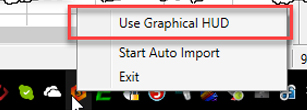
For the correct work of the graphical HUD, the developers recommend setting the “Preferred Seating” option to “Auto-Center” mode.
Supported poker rooms
Graphical HUD works well with all poker rooms that support HM3. Some of these are:
- 888Poker;
- PokerStars;
- William Hill;
- iPoker Network.
Supported games
At present, the graphical HUD in Holdem Manager 3 operates seamlessly at the cash and tournament tables. It also supports fast poker tables like Zoom (PokerStars) and SNAP (888Poker), but to ensure the overlay will work correctly, players should launch Holdem Manager 3, enable Start Auto-Import/HUD server, and then open the poker client.
HUD elements
The Graphical Heads-Up Display consists of the round element and the line beneath:
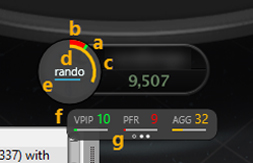
The round part has 3 main statistics: VPIP (marked as “a”), PFR (b) and AGG in % (c). The “D” letter on the image identifies the area that depicts the username. The blue line underneath displays the played hands count (e).
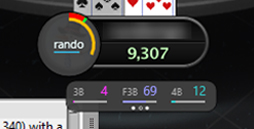
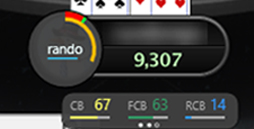
The other part of the overlay is “Stat Line”. We marked it with the letter "f". The values are expressed as percentages. To see other information, click the dots at the bottom (g).
Notes
Heads-Up Display has a built-in note-taking tool. It’s exceptionally useful for players who want to write anything about the player during the action, hover the mouse on the rival’s HUD, and tap on the “pencil” appeared. Now you can leave a mark in the “Note editor”.
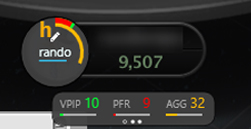
Moving HUD in Holdem Manager 3
It’s possible to change the overlay position. Click and hold the right mouse button and pull the panel anywhere you want.
“Stat Line” concealing
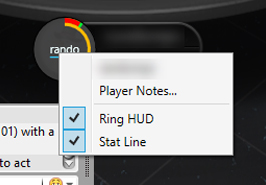
You can pick what elements of Heads-Up Display you want to see. Hover the mouse over it and click the right mouse button. You’ll see a menu allowing you to disable or turn on the ring element or stat panel. It’s also a quick way to enter “Player notes.”
Preferred Seating in Holdem Manager 3
Open Holdem Manager 3 and select Tools → Site Settings
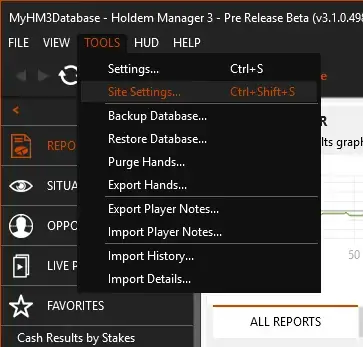
Poker Site Settings
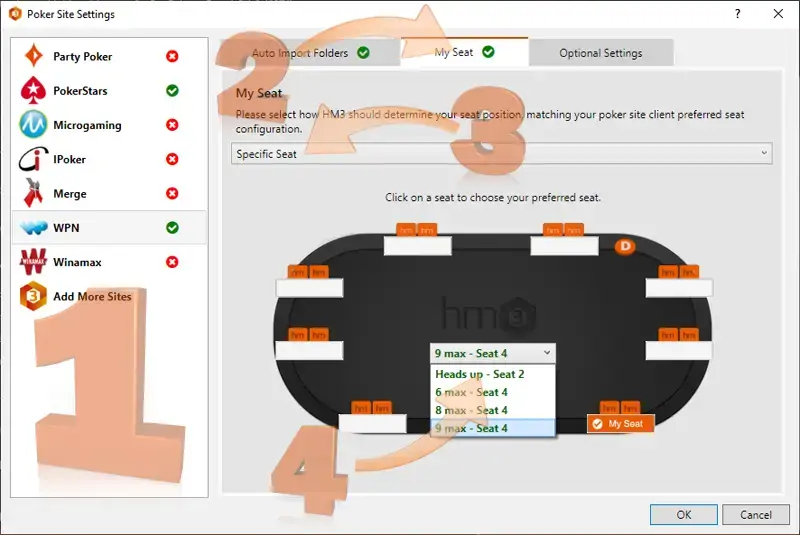
- Choose your poker room on the left.
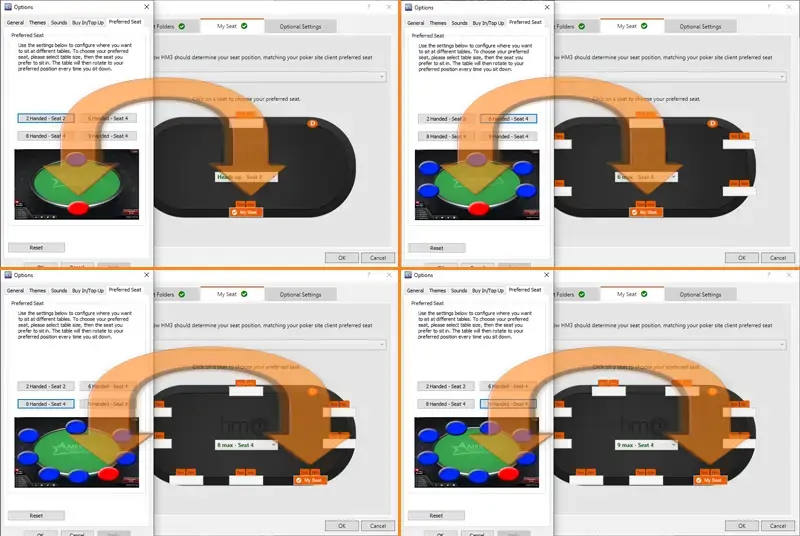
- Click the tab My Seat.
- Use the pop-up menu (3), to choose Specific Seat, Auto Centre, or None Use Hand History Seat.
- Some specific poker rooms, such as PokerStars, write down a selection of seats in the user file. For these poker rooms, the option None Use Hand History Seat will be used.
- Most poker rooms will use the option Specific Seat.
- If the Specific seat is chosen, use this pop-up menu (4) to manually pick the seats that you chose in your poker software. Select the number of players in pop-up, then click on seat assignment in Holdem Manager according to soft of your poker room, as shown in the picture below.
See how we adjusted the view for Winning Poker Network (WPN)
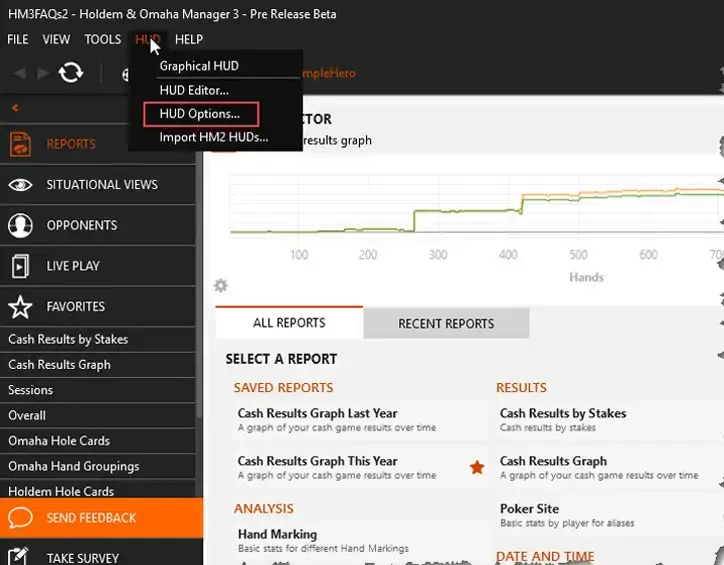
Holdem Manager 3 HUD Options
The settings of Heads-Up Display parameters are carried out in the menu HUD > Options.
Menu “HUD options” operates similarly to HUD settings in Holdem Manager 2.
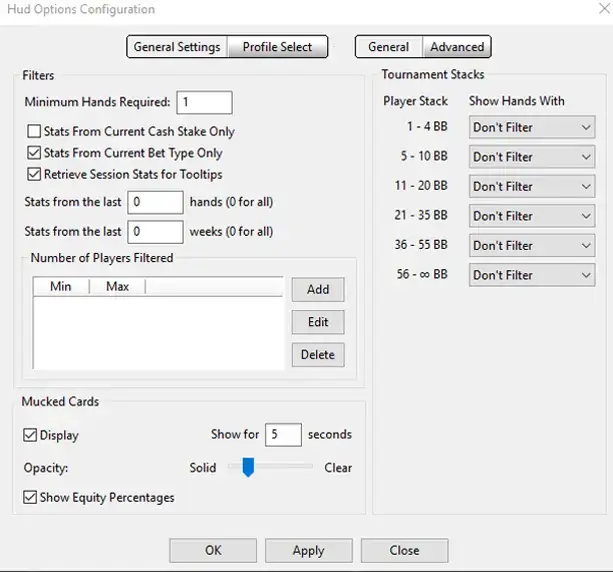
This is what the panel allows you to do:
- Set HUD filters.
- Edit how long the “Mucked cards” will be shown, or disable their display altogether.
Also, it is available here the change of HUD profiles in HM3.
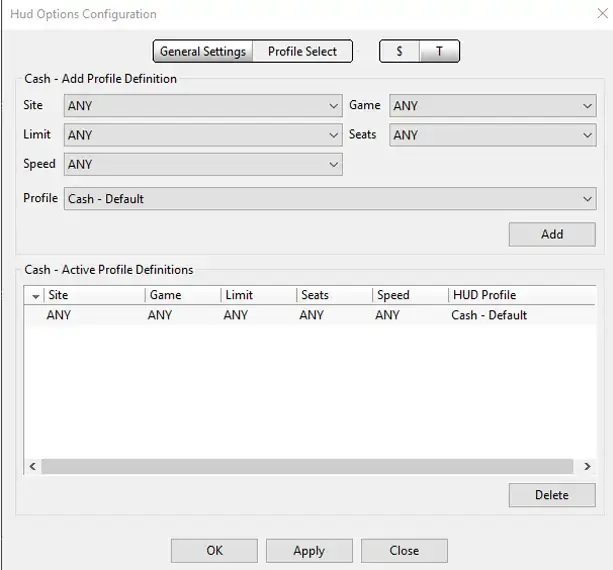
Menu operates in a similar way to “Site Options” at HM2.
In this section, you can assign a concrete HUD to sites and games’ types. The important thing is to make sure that there are no inconsistencies in the fixed parameters. If you use concrete assignments, don’t set “ANY” for all settings.
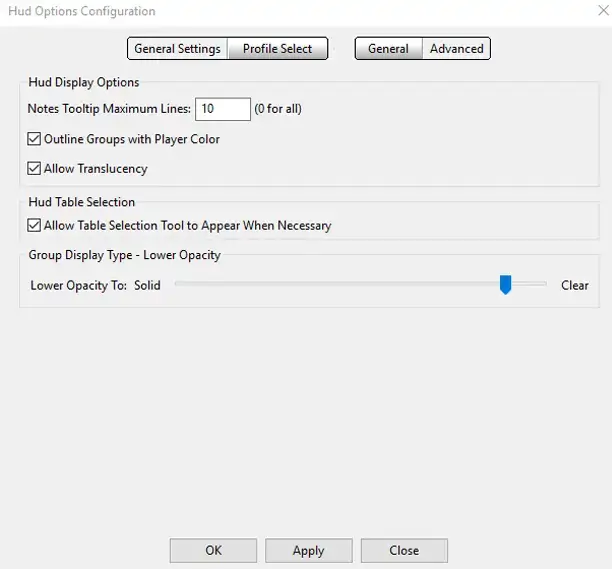
There are more parameters for a display in “Advanced” where you can control the following settings:
- The quantity of shown lines of notes.
- Structural groups of stats with a player’s colour (as “Auto Rate Settings” in HM2).
- Allow the transparency (set a phone saturation of HUD).
- Switch on/off the Table Selection tool.
- Adjust the level of opacity for the stat groups.
Holdem Manager 3 HUD Filters
Setting filters helps users to see the stats of the opponents based on the current conditions: cash stake, bet type, etc. It’s possible to adjust filters based on the number of players or the stack size (for tournament play).
Note: The players count filter can work simultaneously with the HUD Filter on the Tournament Stacks.
- Open Holdem Manager 3
- Select HUD → HUD Options → General Settings
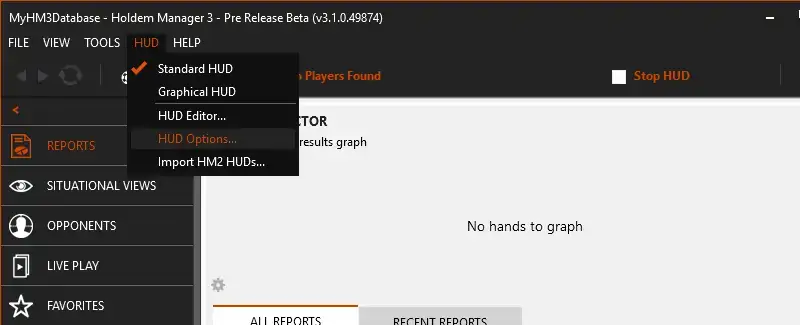
Holdem Manager 3 HUD Filters – Number of Players
Get a quick breakdown of available filtering options:
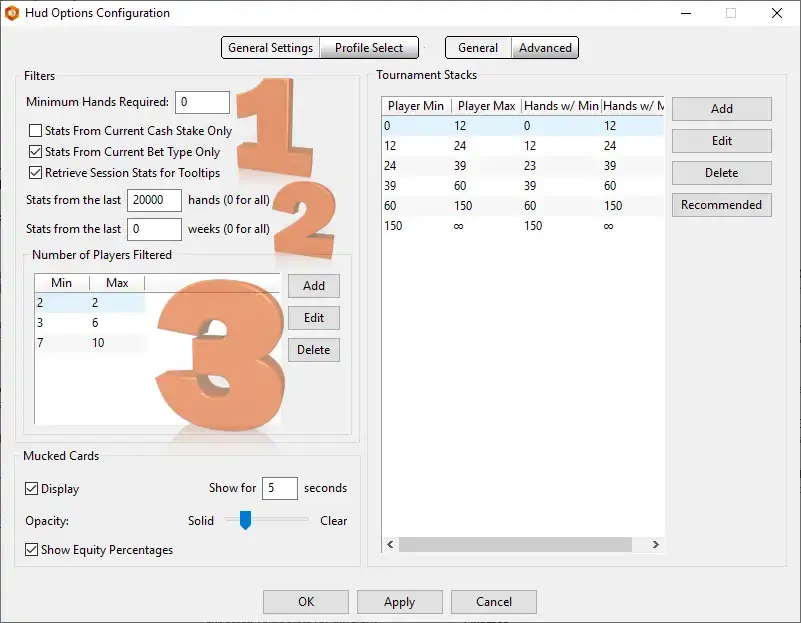
- Minimum Hands Required: It defines how many hands you should play against the rival to make Holdem Manager start showing the stats. You can set this value to 0 or any larger amount if you want.
- "Stats from the last Hands/Weeks": Use it to see how the opponent’s performance changes with time.
- Option "Number of Players Filtered". Set any number you want. The screenshot above can serve as a good example of settings: it shows hand filtering based on heads-up, 6-max and 9-max.
With the above filter you will never mix 9-max hands with 6-max hands or heads-up in your HUD Holdem Manager 3.
HUD Filters for Tournaments
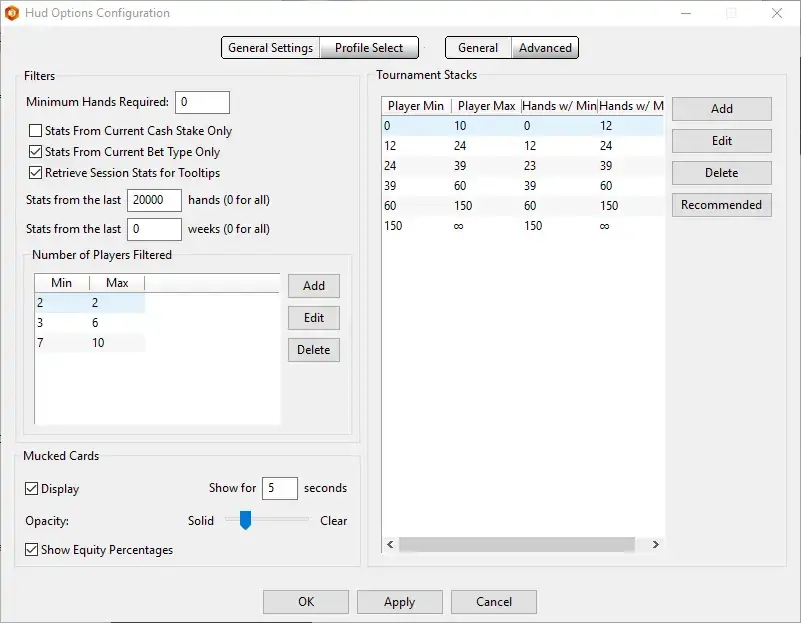
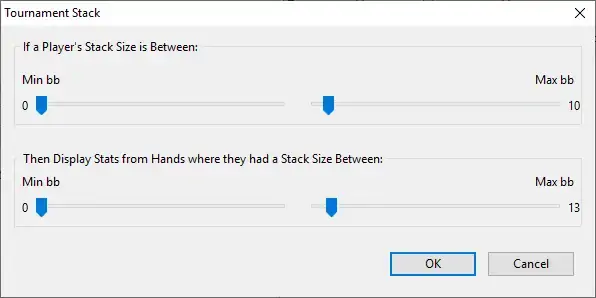
On the same page, users can set the filter based on the number of big blinds that the player has at the time the hand begins. This one is tailored to the tournament experience. Start by clicking on the “Recommended” button on the right, then adjust the filters to your preference.
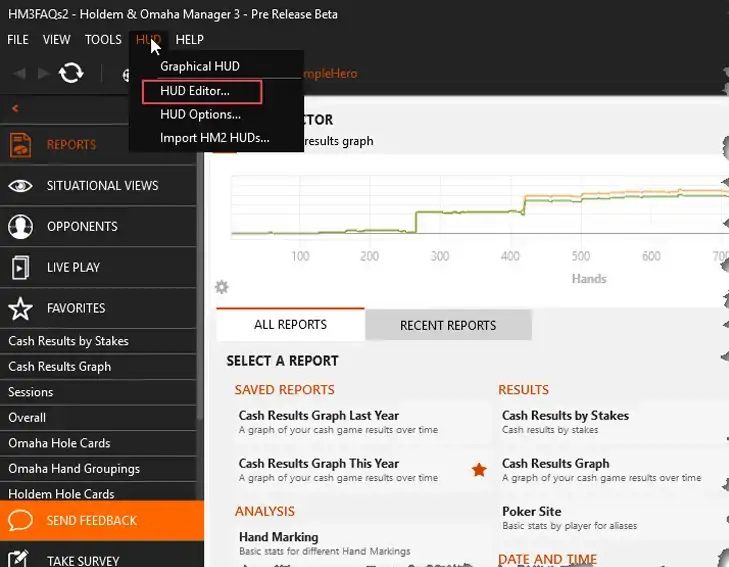
Holdem Manager 3 HUD Editor
If you want to adjust what stat elements are depicted in the overlay, add pop-ups on betting rounds, click on the HUD tab and then select HUD Editor from the drop-down menu.
It operates in a similar way to HUD Settings – HUD Designer in HM2.
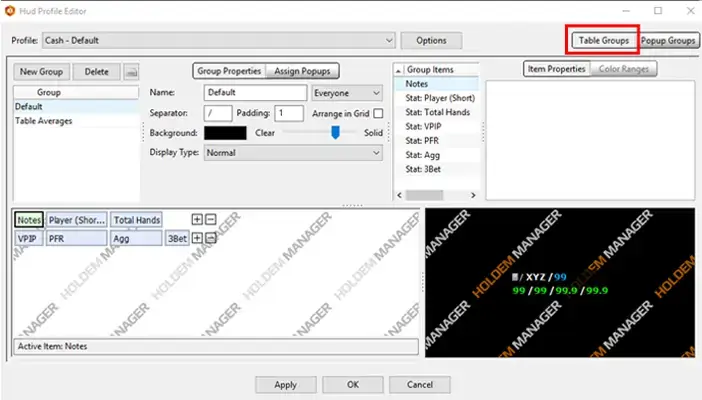
Pop-up will be chosen in the field of a group.
You can:
- Create a new Heads-Up Display.
- Edit HUD properties.
- Add the stats in HUD.
- Group the elements in the panels.
- Edit the font and align HUDs.
- See the preview of your HUD.
- Edit stats.
- Export and import HUD via the button on the right of the “Delete” option.
Note that average indicators for the table will be changed right there like a unique HUD.
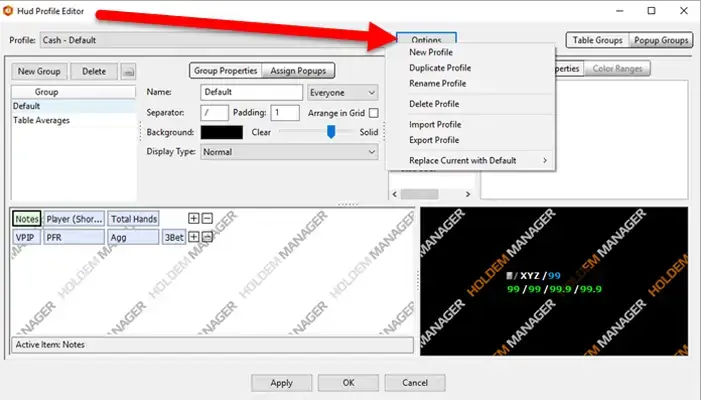
To delete, rename, copy or return your profile to default settings, use the "Options” menu.
In the upper right corner, there is a switch with the help of which the window of pop-ups’ editing is opened. In order to do it, you should just click “Popup Groups”.
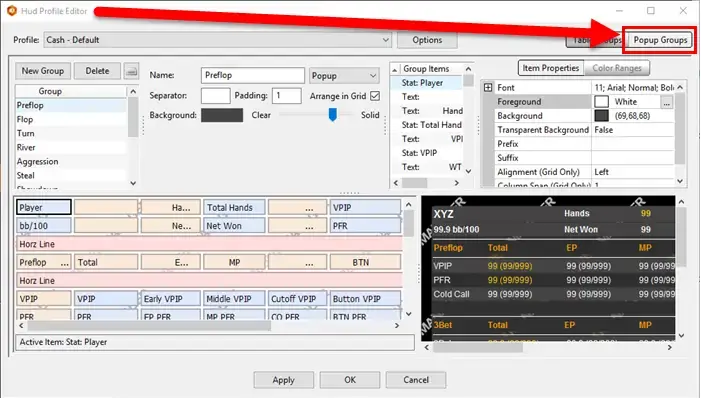
In the upper left corner, you can select pop-up and create a new one or delete the current pop-up and also export or import the pop-ups (to the right of a shortcut “Delete”).
Popup Groups operates in a similar way to HUDs’ editor. You can look through the stats in the pop-up and edit their settings, look through the stats in HUD and make a preview of pop-ups (lower in the right corner), edit the font and alignment.
Stats are added lower in the left corner. Here you can add the horizontal line (such as a lattice line in the pop-up’s designer of HM2).
What Should You Do if HUD Does Not Operate?
- Check if you enabled saving the hand history in poker client.
- Make sure that the poker client collects hands to the folder from which Holdem Manager hitches them. Follow this path to check it: HM3 > Tools > Site Settings.
- See whether you switched on auto-import > File > Start Auto Import option.
- Check if the import of hands to HM3 is set correctly:
- Open Tools > Import Details and proceed to the tab “Live play”.
- You should see an inflow of new hands during the game and also observe them in HM3 > Reports.
- HUD should appear during the hands’ import.
If you still cannot see HUD, look whether the icon HM3 HUD is on the table.
In the case that no one of the above-mentioned piece of advice helped you, renew the process over again and:
- Make screenshots of a desktop.
- Try to display the tab “Live Play”, watch Windows and watch of a poker client’s lobby.
- Reach out to assistance via the “Send Feedback” section or “Help” tab. Describe your problem and attach file logs and configuration files for illustrative purposes.
- Send screenshots to a new support system “Support Ticket,” or attach them to existing requests.
Our Verdict
Knowledge of HUD Holdem Manager 3 settings is necessary for intermediate and advanced players.
This Heads-Up Display is suitable for players who value a data-driven approach to the game. If you value customisation and prefer to adjust the stats you’d like to see, HM3 is a perfect option for you. Although it takes some time to get around in the Heads-Up Display editor, filters, and options, the data you get rewards you, bringing the gameplay to a new level.
FAQ
🌐 Which poker clients is Holdem Manager 3 HUD compatible with?
It supports the major UK poker sites, allowing HUDs. These are PartyPoker, 888Poker, PokerStars, William Hill, and iPoker Network, among others. It works well, showing stats in cash tables and tournament games on the listed platforms.
🐌 Can Holdem Manager 3 HUD slow down poker tables?
Yes, lagging is possible during multi-tabling, when you’re on weak hardware, or when you install some add-ons like Notecaddy. If you experience long loading times, try to remove unused pop-ups from HUD, disable the information you don’t use, and reduce the limit on the maximum number of hands stored.
🃏 Does HUD from Holdem Manager 3 track fast-fold poker tables?
Yes, the Heads-Up Display overlay works with Snap, Zoom, FastForward, and other fast variations of the poker game. The software works seamlessly without errors most of the time if you launch it properly. First, run the HM3, then enable the Auto-import, and only after that can you enter the poker client.
❌ How do I hide Hero stats in the HM3 HUD?
Go to the HUD Editor and ensure you picked the Group Properties in the top panel. Locate the combo box, right to the Name section. Click on it to open the drop-down menu. Pick the “Everyone But Hero” option from the list, choose “Apply” to save new settings and then press
“OK”.
🔄 How to move individual HUD elements in Holdem Manager 3?
Players can use two ways to customise HUD positions in HM3. If you feel more convenient using the mouse only, go to the Heads-Up Display tab, select Unlock Layout and drag elements freely. Then go to the same menu to Lock & Save it. Or you may use the keyboard: press and hold the CTRL key with the left mouse button until you find the perfect position on the screen.




Please, login or register.