
HUD Settings for PokerTracker 4
- HUD profiles editing
- The third-party HUD installation
- Where is it possible to download the ready-made HUDs?
- HUD profiles selection
- HUD options editing
- Filters HUD
- Mucked Cards
- Statistics by the stacks
- Refresh Rate (the frequency of updates)
- The tab “Advanced” in HUDs configurations
- Profile Select tab
In this article, we will tell you about HUD - the most important PokerTracker 4 function.
Those of you who don’t know what HUD means (Heads-Up Display), it is an informational display that depicts the statistical indicators (hereinafter referred to as “stat”) for every player (including yourself) during the poker game.
With HUD, you operate with much more information than you would not have without it.
As it is well known, the more hands are played with an opponent, the better you know their behaviour in a specific situation.
With the help of HUD, apart from your own observations, all possible stats are available, which you use for making the right decisions in poker.
PokerTracker already has the standard HUD settings separately for the tournaments and cash games. You can change them as you see fit.
How to set HUD in PokerTracker 4
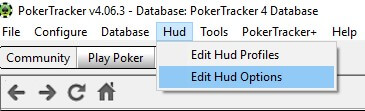
In the PokerTracker 4 lobby, the HUD tab includes two functions: “Edit Hud Profiles» (HUD profiles editing) and «Edit Hud Options» (HUD functions editing for each profile).
Let’s consider the first function.
HUD profiles editing
Press the tab “Hud” in PokerTracker 4 lobby and select “Edit Hud Profile» for HUD profile settings. You can create several profiles for various game types.
If you want your HUD to be the most similar to Holdem Manager HUD, then select Legacy HUD.
The third-party HUD installation
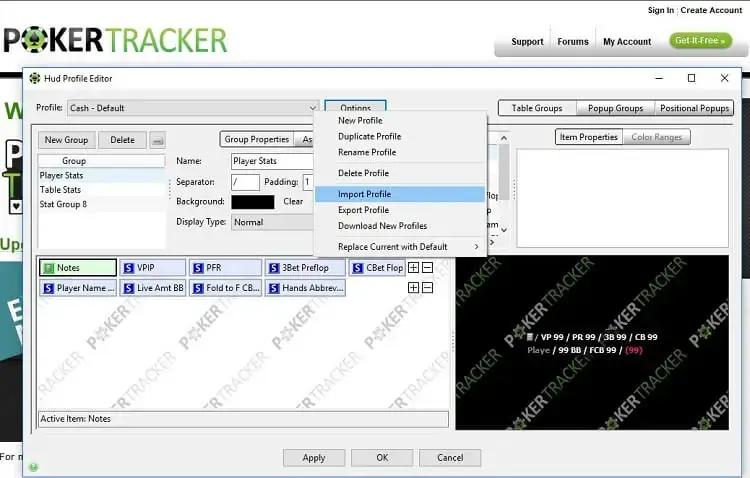
If you downloaded the third-party HUD or you want to import the settings from PokerTracker 3 or another computer, then you should press “Options” in the tab «HUD» – «Edit Hud Profile» and choose “Import Profile” (it is permitted .pt4hud and .pt3hud formats).
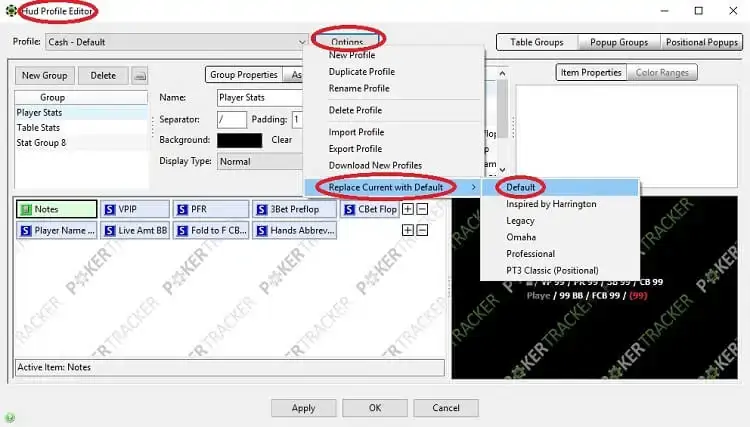
You have an opportunity to restore the default settings for the profile (default):
Where is it possible to download the ready-made HUDs?
It is easy to find in the network the poker HUDs, both for Holdem Manager and PokerTracker. Be cautious while choosing them, and remember that it is better not to download them from the unchecked resources. As a rule, free HUDs are either old-fashioned or simplified. But they'd be perfect for the newbies and the micro-limits players.
It will be difficult for a new player to find out how to use PokerTracker, and it will also be difficult to set the HUD data at once. That’s why you can download a ready-made HUD for PokerTracker 4. For those players who have just installed PokerTracker and are in the process of learning the basics, we recommend downloading a free HUD and gradually adjusting it for yourself. You can also buy HUD from the professionals and the poker coaches.
HUD profiles selection
In order to change the HUD profile during the game, you should press the PokerTracker icon at the table and select «Change Profile».
If you play basically at certain types of tables, then put a checkmark in «Make Active Profile Default for Table Type». In this case, the profile selected by you will always be used by default for these tables.
So, we have cleared up the HUD profiles, and now let’s proceed to HUD settings in PokerTracker 4.
HUD options editing
As it was mentioned above, you should select the menu “HUD” in the PokerTracker lobby and press «Edit Hud Options» in order to set HUD options. The settings menu «General Settings» looks like this:
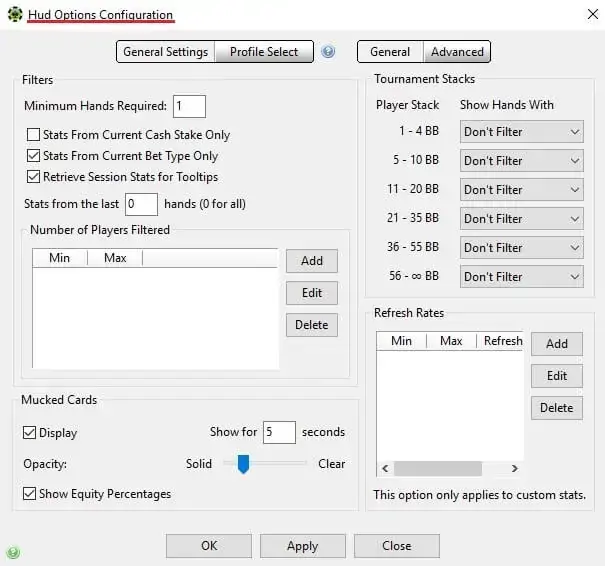
Let’s figure everything out step by step.
Filters HUD
The filter settings block is in the top left corner of the panel:
- Minimum Hands Required – it is the necessary number of hands required for the player’s stat to be displayed. The more hands are played, the more accurate the statistical data is.
- Stats From Current Cash Stake Only – it means to show the PokerTracker stats only for one limit (for example, NL 100)
- Stats From Current Bet Type Only – it means to show the statistical data only for the selected poker type: pot-limit, fixed-limit or no-limit.
- Retrieve Session Stats for Tooltips – it means to show the players’ statistics separately for the current session (the comparison of a play session with the preceding ones).
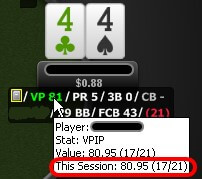
- Stats from the last hands – it means to indicate the number of hands according to which the statistics should be displayed. This function is useful only if you have played a lot of hands with a certain opponent and you need the fresh stats from his play. Set “0” if you have a few total hands with the player.
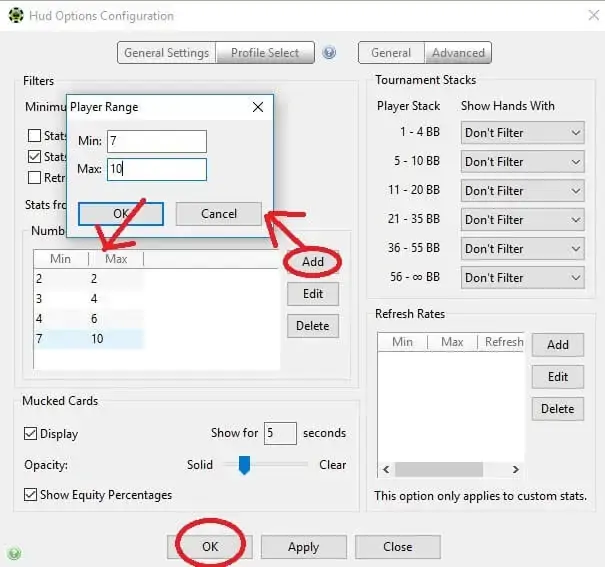
- Number of Players Filtered – it means the stat displayed depends on the player quantity at the table. The player makes the decision based on the players’ quantity among other things, which is why the PokerTracker stats must be displayed with this fact taken into account.
The method of this indicator’s setting is given below:
Mucked Cards
The next settings block (in the bottom left corner) - Mucked Cards, and there are only two functions:
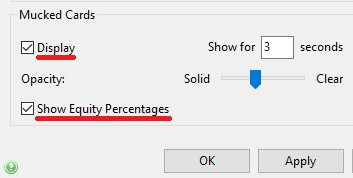
- Display – it is the settings for a card demonstration after you will muck them. In the picture below, there is a checkmark put in “Display” and in the box “Show for … seconds» 3 seconds are set. It means that the function “show the mucked cards for 3 seconds” is turned on. The transparency level displaying from “Solid” (non-transparent, deep color) to “Clear” (transparent) is regulated by the slider.
- Show Equity Percentages – it means to enable the equity display of the mucked cards.
Statistics by the stacks
There is also a stats filter function in PokerTracker, depending on the opponents’ stack. If you leave “Don’t Filter”, then you will be shown the same stat for the player regardless of his current stack and play style in one or another range. For example, if you select the point “Show Hands With 3-15BB” in front of «Player Stack 5-10BB», then it would mean that when the opponent’s stack is in the range of 5-10BB, then only his play stats with a stack from 3 BB to 15 BB will be shown.
Thus, by configuring each line, you will get a floated stat for the player that will be changed depending on his stack size.

Refresh Rate (the frequency of updates)
You should set the filter data value only in that case if you set PokerTracker independently. If you use embedded statistics, then you shouldn’t change anything.
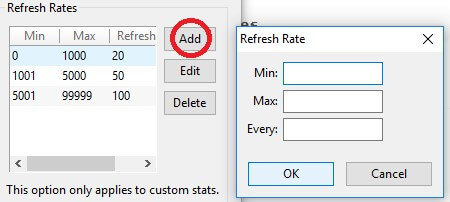
So, you should set the update frequency of the hands data basis in “Refresh Rates”.
In “Min”, you should set the number from 1 to X, the quantity of already available hands for the opponent.
In “Every”, you need to write the session quantity that should be played with the player in order for the database to be updated.
It is important: the numbers should be in the sequence from zero without gaps. An example of the correct filling:
The tab “Advanced” in HUDs configurations
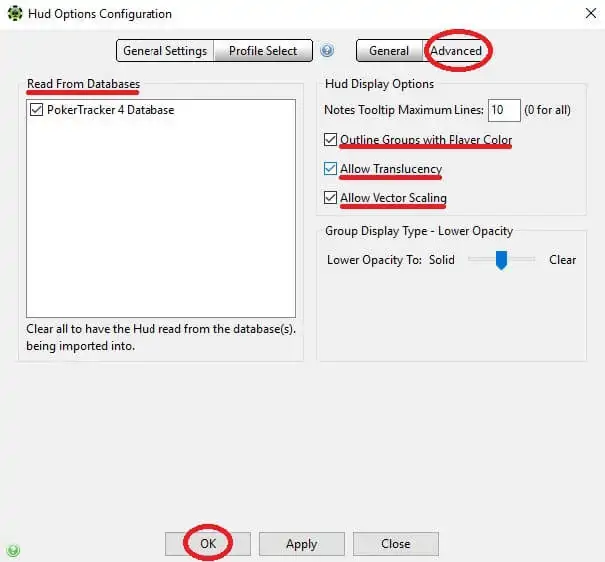
- Read From Databases – here is the database.
- Outline Groups with Player Color – the function that lets you mark the stats with different colors for perception convenience.
- Allowing Translucency – here you can set the HUD elements' transparency.
- Allow Vector Scaling – This function must be enabled for proper display of the stats when the poker client window is scaled.
- Group Display Type – here you should set the indicators' transparency level that are displayed when you hover the mouse (pop-ups).
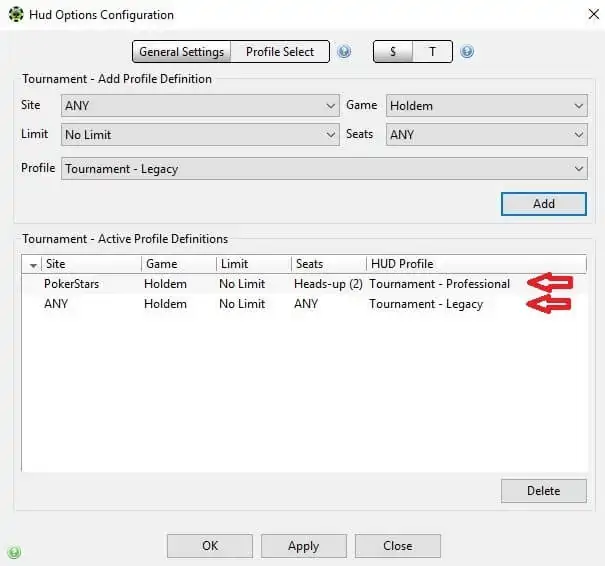
Profile Select tab
Here you can set the poker room and the game type where you want to use one or another profile. You can select the profile separately for the tournaments and cash games at the particular sites:
If you have had enough patience to read this article to the end and cleared up all the cobwebs of PokerTracker 4 settings, then you are a purposeful and prospective player.
You should train a little, and then you will become a real pro.
We are sure that the stat tracking poker programs can help you turn your hobby into a pleasant income source!
But if you prefer a traditional poker without soft use, then we recommend that you play only in those poker rooms that prohibit its use. Thus, other players won’t have an advantage over you in the form of statistical data.




Please, login or register.